 Bobbin
Quick answer
Press Shift+Ctrl+Show windows → Screen record → Settings → choose Microphone, Device audio or both (and Front Camera if you want your face) → click to start. Stop with Search+Shift+X. The video lands in Downloads as a .webm file.
Method 1: the built-in Screen capture tool
These steps follow Google's Chromebook Help page (checked 22 October 2026):
- Press Shift+Ctrl+Show windows (the key with stacked rectangles). Or open Quick Settings at the bottom right and select Screen capture.
- At the bottom, choose Screen record.
- Choose full screen, partial screen or window.
- Select Settings (the gear) and pick your audio: Device audio, Microphone, or Device audio and microphone. Turn on Front Camera to include your webcam, and Show clicks and keys if you're making a tutorial.
- Click anywhere (full screen), drag an area (partial) or click a window to start.
- Stop with the Stop recording button at the bottom right, or Search+Shift+X.
Recordings are saved to Downloads (you can change the folder in the same Settings menu). Video is .webm; partial-screen recordings can also be saved as GIF, which has no sound.
Source: Chromebook Help: Take a screenshot or record your screen, checked 22 October 2026.
Method 2: a Chrome extension (Bobbin)
The built-in tool is good. An extension makes sense when you need something it doesn't give you:
- An MP4 file. The built-in tool saves .webm, which some editors, LMSs and phones handle poorly. Bobbin saves MP4 where Chrome supports it (Chrome 126 or newer) and tells you the codec it used.
- A movable webcam bubble. A round camera window you drag anywhere and resize.
- Pause and resume, a countdown, and a Library to play, download or delete takes.
- Crash safety. Every second is written to storage as you record; if Chrome crashes, the take is recovered next time.
Recording with audio in Bobbin on ChromeOS
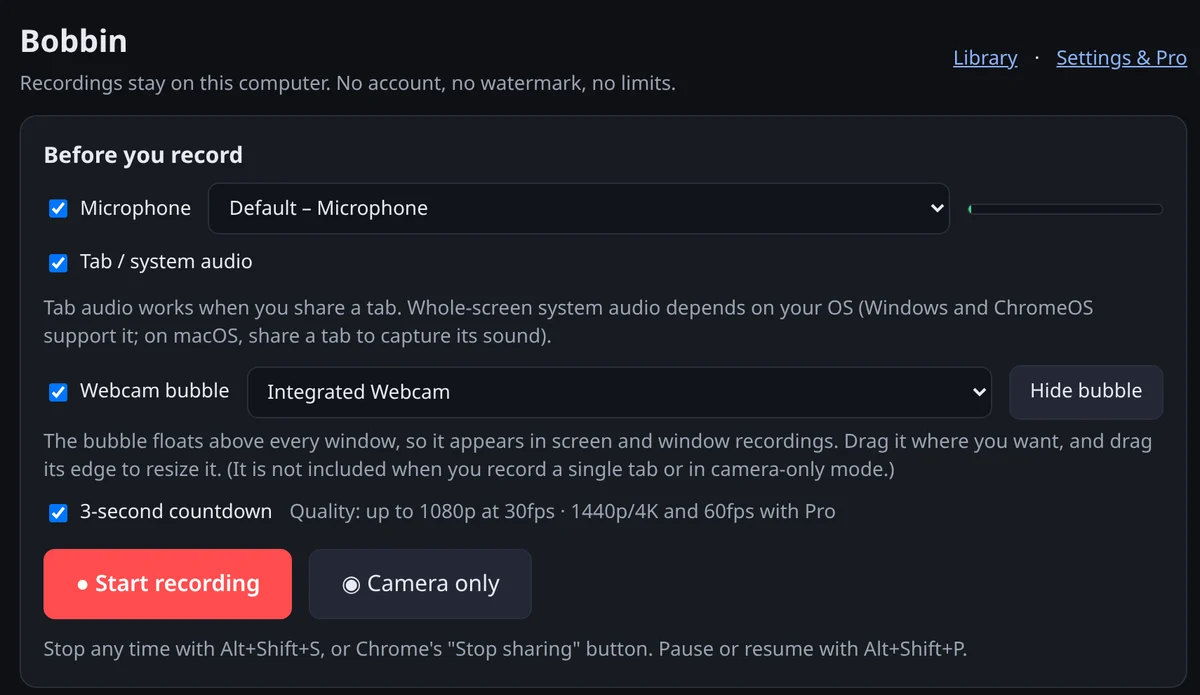
- Click the Bobbin icon → Record screen, window or tab.
- Tick Microphone for your voice and Tab / system audio for sound from the Chromebook.
- Press Start recording. In Chrome's picker:
- choose Entire screen and turn on system audio to capture everything you hear (ChromeOS supports whole-screen system audio), or
- choose a Chrome tab with "Also share tab audio" to capture just that tab's sound.
- Stop with Alt+Shift+S and press Download.
Which should you use?
| Built-in Screen capture | Bobbin extension | |
|---|---|---|
| Cost | Free | Free (Pro optional) |
| Mic + device audio | Yes | Yes (whole-screen system audio on ChromeOS) |
| Webcam | Front Camera option | Floating, draggable, resizable bubble |
| File format | .webm (or GIF for partial screen) | MP4 where supported, WebM otherwise |
| Pause / resume | Not described in Google's help page | Yes |
| Show clicks and keys | Yes | No |
| School/work managed device | Usually available | Only if your admin allows extensions |
On a school or work Chromebook
Managed Chromebooks often block extensions from the Chrome Web Store, and admins can restrict screen capture. If "Add to Chrome" is greyed out, ask your IT admin, or use the built-in tool if it's allowed. Always follow your school's rules about recording classes and other people.