 Bobbin
First, which sound is missing?
- Your voice → microphone problem: fixes 5–8.
- Sound from the computer (a video, a call, an app) → tab or system audio problem: fixes 1–4.
- All sound, but only in one player → playback problem: fix 9.
1. You didn't tick "Also share tab audio"
When you share a Chrome tab, Chrome's picker has a share tab audio switch. If it's off, the tab's sound isn't captured. Start again, pick the tab, make sure the switch is on. In Bobbin, also tick Tab / system audio before you start.
2. You shared a window, not a tab
Chrome doesn't offer audio for a single window in most setups. If the sound comes from a web page, share that tab instead. If it's a desktop app, see the next fix.
3. Whole-screen system audio isn't supported on your OS
Chrome can capture your whole computer's sound when you share the entire screen on Windows and ChromeOS. On macOS and Linux, Chrome generally only offers tab audio. Workarounds:
- If the sound comes from a website (YouTube, a web call), play it in a Chrome tab and record that tab with tab audio on.
- For desktop apps on a Mac, use a tool that records system audio natively, or a virtual audio device that routes sound into a microphone input.
Bobbin handles this gracefully: if your system can't capture audio, it records the screen without it and tells you, instead of failing.
4. The tab or app was muted
A muted tab (speaker icon with a slash on the tab) records silence. So does an app with its volume at zero. Unmute before recording.
5. The microphone wasn't selected
In Bobbin, tick Microphone and check the level meter moves when you talk. If it doesn't move, nothing is being recorded.
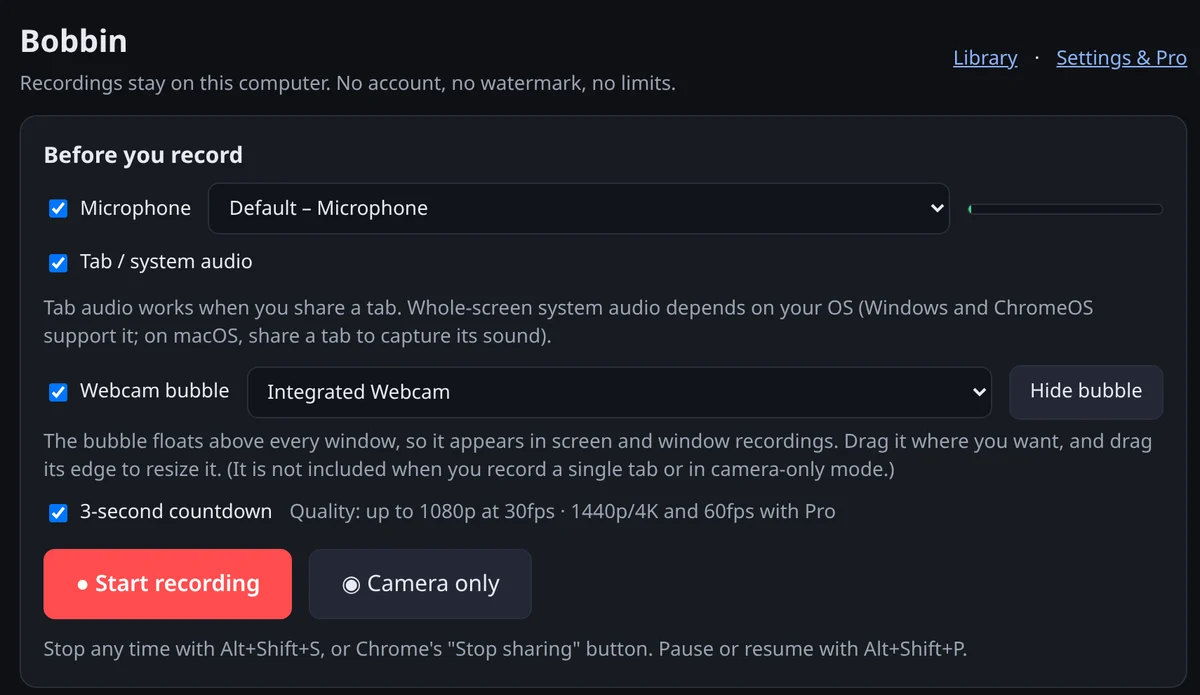
6. The wrong microphone is selected
Laptops often list several inputs: built-in mic, headset, webcam mic, a virtual device. Pick the one you're speaking into from the dropdown. Bluetooth headsets sometimes switch to a low-quality "hands-free" mode when their mic is used. A wired or USB mic avoids that.
7. Chrome or the OS blocked the microphone
- Chrome: open
chrome://settings/content/microphoneand make sure it isn't blocked for the recorder. - Windows: Settings → Privacy & security → Microphone → allow desktop apps (and Chrome) to use the mic.
- macOS: System Settings → Privacy & Security → Microphone → turn on Google Chrome (or Edge/Brave), then restart the browser.
- ChromeOS: open Settings → Privacy and security and make sure microphone access is turned on.
8. Another app grabbed the mic
Some apps (call software, dictation tools) take exclusive control of a microphone. Quit them, reload the recorder tab and pick the mic again. If you're recording a call, see our Google Meet recording guide for the right setup.
9. The file has sound, but your player doesn't play it
Try the file in Chrome (drag it into a tab) or VLC. If it plays there, the audio is fine and the player is the issue. Recordings made in Chrome on Linux can use Opus audio inside the MP4, which QuickTime and some older players may not play. Bobbin tells you which codec it used after each recording. Files made on Windows, macOS and ChromeOS are the most widely compatible.
A 20-second pre-flight check
- Mic ticked and the meter moves.
- Tab / system audio ticked if you need computer sound.
- Share the tab for web audio, or the entire screen on Windows/ChromeOS for all sound.
- Do a 5-second test and play it back.