 Bobbin
Ask first. When you record with a third-party tool, Meet doesn't tell anyone you're recording. Say so at the start, get agreement, and follow your organisation's rules and local law. In many places recording a call without consent is illegal.
Option 1: Meet's built-in recording (if your account has it)
Per Google's Meet Help (checked 22 October 2026), recording is available on these Google Workspace editions: Business Standard, Business Plus, Enterprise Starter/Standard/Plus, Enterprise Essentials, Essentials, Education Plus (staff), Teaching and Learning Upgrade, Workspace Individual, and Google One plans with 2 TB or more. Free personal Gmail accounts don't get it. The admin must allow recording, and you must be the host or have permission.
How: in the meeting, open Meeting tools → Recording → Start recording. Everyone is notified. The file goes to the organiser's Google Drive in a "Google Meet" folder, recordings stop after 8 hours, and you need enough Drive space.
Source: Google Meet Help: Record a video meeting.
Option 2: record the Meet tab with Bobbin (any account)
- Join the call in Chrome (meet.google.com in a tab).
- Click the Bobbin icon → Record screen, window or tab.
- Tick Microphone (your voice) and Tab / system audio (everyone else). Untick Webcam bubble: Meet already shows your camera.
- Press Start recording, choose the Chrome tab with Meet, and keep share tab audio on. Bobbin mixes your mic with the tab's sound.
- Wear headphones. Otherwise your mic also picks up other people from your speakers, and they're recorded twice.
- When you're done, stop with Alt+Shift+S and press Download. The MP4 stays on your computer.
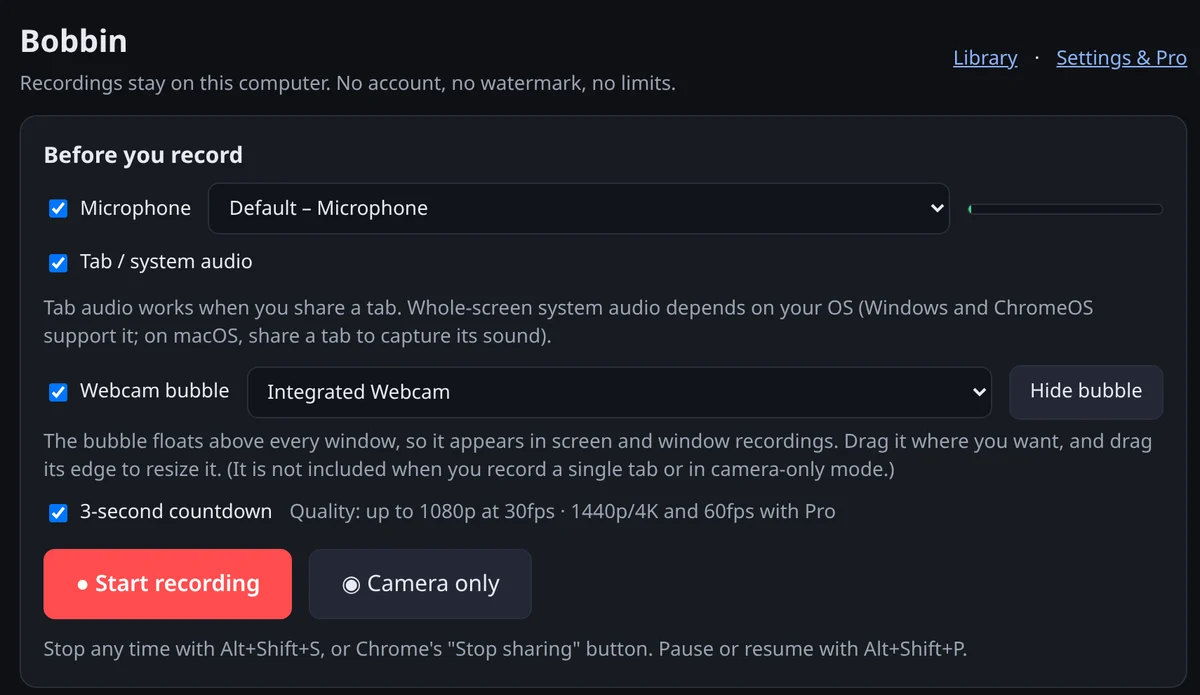
Why the tab, not the screen? Tab audio works on every OS, including Mac and Linux. Whole-screen system audio only works on Windows and ChromeOS. A tab recording also keeps your other windows and notifications out of the video.
Zoom and Teams
- In the browser (Zoom web client or Teams on the web): same steps, just share that tab.
- Desktop apps: share the app's Window or Entire screen. Their sound is only capturable as whole-screen system audio, which Chrome supports on Windows and ChromeOS. On a Mac, use the app's own recording feature or join from the browser instead.
Built-in vs Bobbin
| Meet recording | Bobbin (tab recording) | |
|---|---|---|
| Who can use it | Eligible paid Workspace/Google One accounts with permission | Anyone with Chrome, Edge or Brave on a computer |
| Notifies participants | Yes, automatically | No: you must tell them |
| Where it's saved | Organiser's Google Drive | Your computer |
| Length | Up to 8 hours | No limit (disk space) |
| Captions/chat saved | Options for captions and chat log | No |
| Layout | Active speaker + presentation | Exactly what your Meet tab shows |