 Bobbin
Quick answer
Install Bobbin → click its icon → Record screen, window or tab → tick Microphone and Webcam bubble → Start recording → choose Entire screen (or a window) in Chrome's picker. The camera bubble floats on top and is recorded with your screen. Stop with Alt+Shift+S.
Before you start
- Browser: Google Chrome 116 or newer, or another Chromium browser like Microsoft Edge or Brave. MP4 output needs Chrome 126 or newer; older versions save WebM.
- Computer: Windows, macOS, Linux or ChromeOS. Phones and tablets can't run Chrome extensions.
- Close other camera apps. If Zoom, Teams or another tab is using your webcam, the camera may not start.
- On a Mac, Chrome needs Screen Recording permission (System Settings → Privacy & Security → Screen Recording, called Screen & System Audio Recording on newer macOS). macOS asks the first time; you may have to restart Chrome after allowing it.
Step by step
1. Install and pin Bobbin
Add Bobbin from the Chrome Web Store, then click the puzzle-piece icon and pin it so the record button stays in your toolbar.
2. Open the recorder
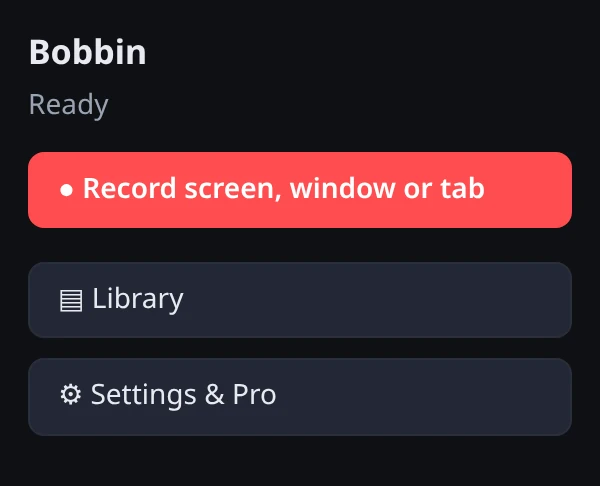
Click the Bobbin icon and press Record screen, window or tab. The recorder opens in its own tab. Keep this tab open while you record.
3. Choose your microphone and camera
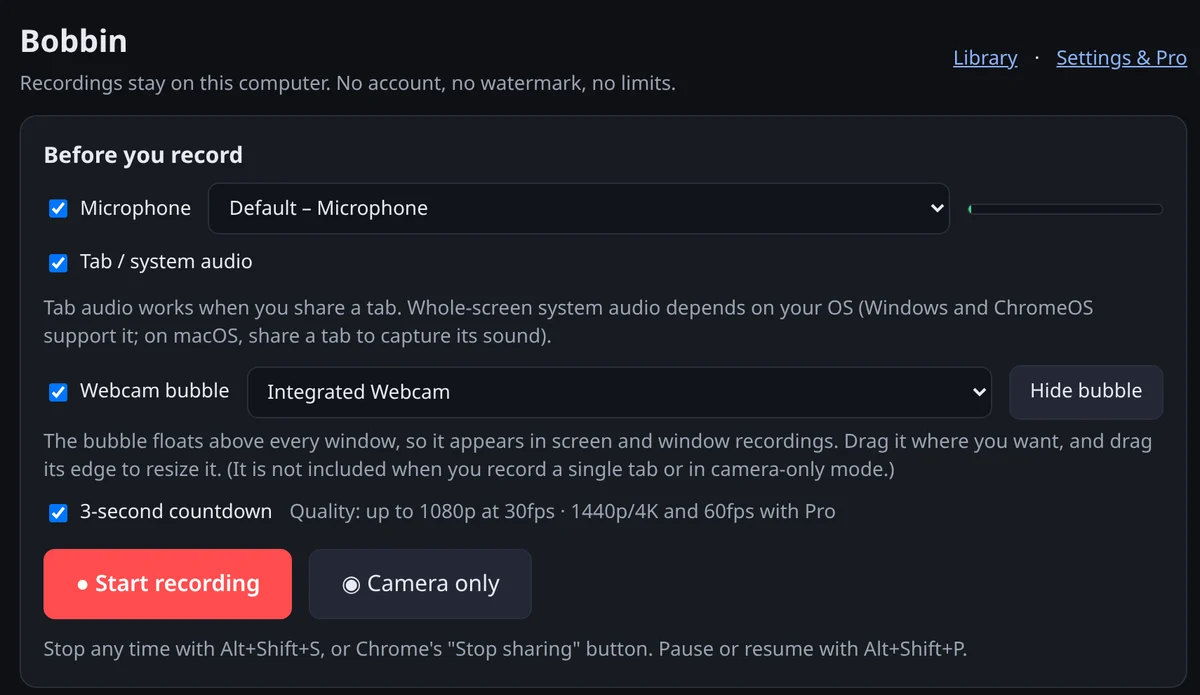
Tick Microphone and pick your mic; the level meter next to it should move when you talk. Tick Webcam bubble and pick your camera. Chrome asks for permission the first time.
4. Place the webcam bubble
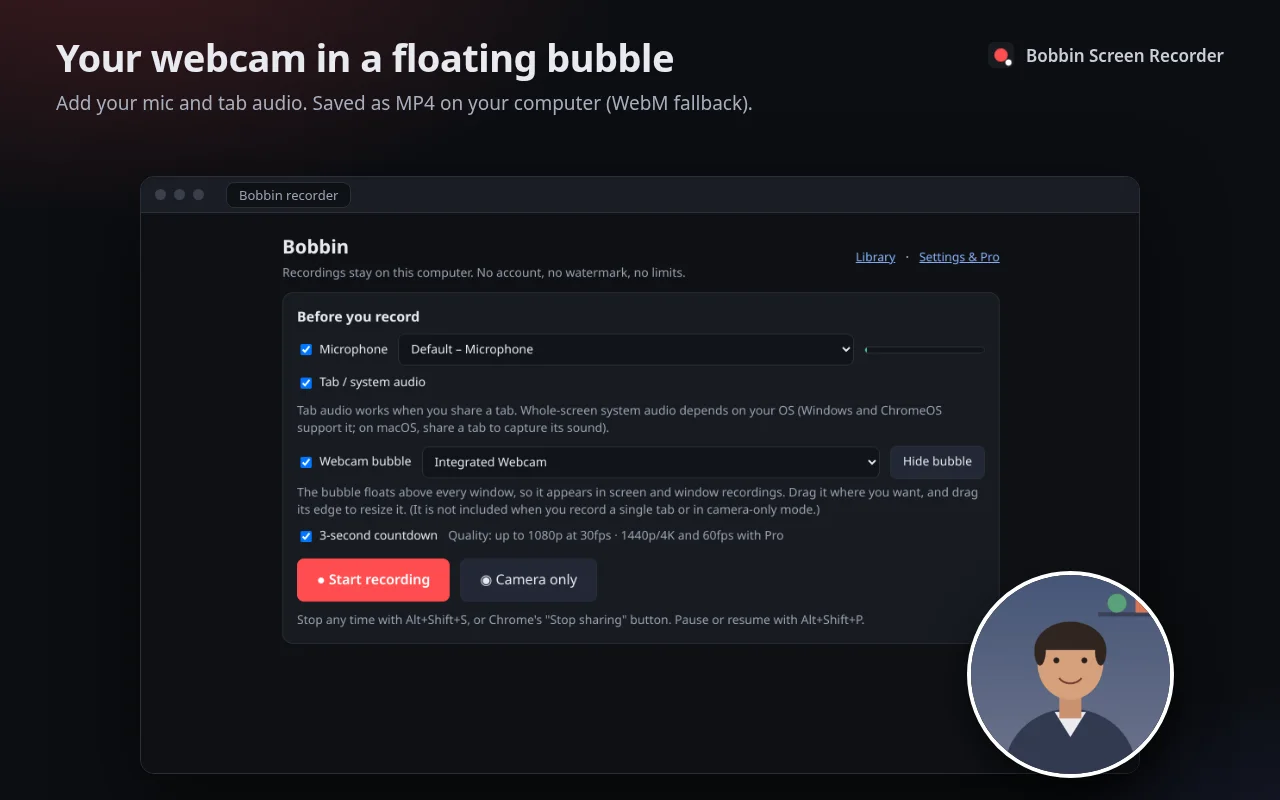
The bubble is a small floating window. Drag it to a corner where it won't cover what you're showing, and drag its edge to make it bigger or smaller. Bottom-right is the usual spot because most apps keep important buttons top-left.
5. Start recording and pick what to share
Press Start recording. Chrome's picker opens with three tabs:
- Entire screen: everything you see, including the bubble. Best for demos that switch between apps.
- Window: one app window. The bubble shows if it sits over that window.
- Chrome tab: only the tab's content. Cleanest for web apps, but the bubble isn't included, because it's a separate window.
After a 3-second countdown, you're recording. The Bobbin icon shows a running timer.
6. Pause, stop and save
Pause and resume with Alt+Shift+P. Stop with Alt+Shift+S or Chrome's Stop sharing button. Bobbin has been writing the video to your computer every second, so it's already safe. Press Download to save the MP4 to your Downloads folder, or open the Library later.
Getting the sound right
- Your voice: the Microphone option. Bobbin uses Chrome's built-in echo cancellation and noise suppression on the mic.
- Sound from a web page (a video, a call in the browser): share a Chrome tab and leave "Also share tab audio" on in the picker.
- Sound from your whole computer: share Entire screen and turn on system audio in the picker. Chrome supports this on Windows and ChromeOS; on a Mac or Linux, play the sound in a Chrome tab and share that tab instead.
No sound in the result? See how to fix a screen recording with no audio.
Camera only
To record just yourself (an intro, a quick hello), press Camera only instead of Start recording. You get a webcam-plus-mic video with a live preview.
Troubleshooting
- Black camera bubble: another app has the camera. Quit it, then pick the camera again.
- Camera blocked: open
chrome://settings/content/cameraand allow it for the extension, then try again. - Bubble missing from the video: you shared a single tab. Use Entire screen or Window.
- Bubble isn't round or is the wrong size: some systems ignore the requested window size. Drag the edge to resize; the camera stays a centred circle.
- MP4 won't play sound on a Mac: recordings made on Linux may use Opus audio, which QuickTime may not play. VLC and Chrome play them.