 Bobbin
1. Plan: one video, one outcome
Finish this sentence before you record: "After this video, you'll be able to…" If you need two sentences, make two videos. Short, single-purpose tutorials are easier to follow, easier to update and easier to find.
Then write an outline. Not a script, just bullets:
Keep it on a second screen or a sticky note while you record.
2. Set up your screen
- Size: a 1920×1080 window or screen is a safe target. Bobbin Free records up to 1080p at 30fps.
- Text size: zoom the browser to 110–125% (Ctrl/Cmd + +). Viewers often watch in a small player.
- Clutter: hide the bookmarks bar, close unrelated tabs, use a clean demo account with realistic sample data.
- Notifications: turn on Do Not Disturb or Focus. Pop-ups ruin takes and can leak private messages.
- Decide on your face. A webcam bubble builds trust in onboarding and course videos. For dense software tutorials, it can cover content; drop it or keep it small.
3. Get the audio right (it matters more than video)
- Record in a small, soft room (curtains, carpet, a sofa). Bare walls echo.
- Any USB or headset mic close to your mouth beats a laptop mic across the desk.
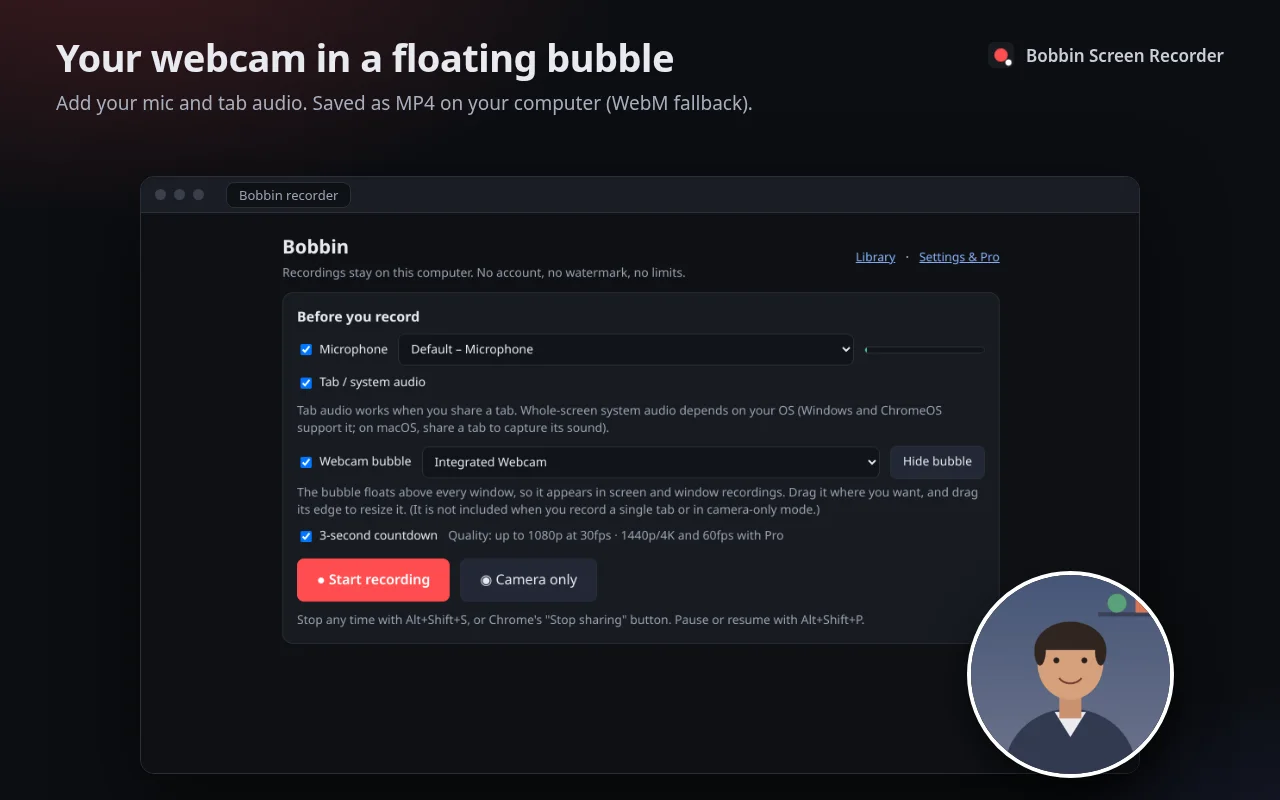
- Watch Bobbin's mic level meter while you speak. It should move clearly but not max out.
- Bobbin uses Chrome's built-in echo cancellation and noise suppression on the mic. It helps, but doesn't replace a quiet room.
- Do a 10-second test recording and listen with headphones before the real take.
4. Record in sections
- Click the Bobbin icon → Record screen, window or tab. Choose your mic and (optionally) camera.
- Press Start recording. Share a Chrome tab for web-app tutorials (cleanest, but no webcam bubble), or Window/Entire screen if you switch apps or want your face in the video.
- Use the 3-second countdown to take a breath. Say the intro line.
- Pause between steps with Alt+Shift+P, check your outline, resume. Paused time isn't in the video.
- Botched it? Press Discard and start that take again. There's no limit on takes or length.
- Stop with Alt+Shift+S and press Download.
Narration tips: say what you're about to do, then do it ("Now I'll open Billing"). Move the mouse slowly and stop it while you talk. Leave a one-second pause at the start and end. It makes trimming easy.
5. Edit lightly
Bobbin doesn't edit: it gives you a clean MP4 (WebM on older browsers). Most tutorials only need the start and end trimmed, which any free editor can do: Clipchamp (Windows), iMovie (Mac), or Shotcut and DaVinci Resolve (Windows, Mac, Linux). If you recorded in one go with pauses, you may not need to edit at all.
6. Publish and share
- YouTube (public or unlisted) for public tutorials. Put the outcome in the title: "How to add a payment method in Acme".
- Your help centre or LMS: upload the MP4 directly.
- Internal: Google Drive, SharePoint or your wiki, shared with the right people.
- Add a short written version of the steps under the video. People skim, and search engines read text.